If you read about solid state drives (SSDs), you’ll encounter a mountain of advice about how you can optimize your SSD’s speed and longevity. However, modern SSDs, advanced controllers, and operating systems have made much of that advice irrelevant. Worse yet, some of it can actually be detrimental to the stability of your PC, especially if you’re running a system with limited amounts of RAM.
Disabling the pagefile
Modern SSDs just aren’t that fragile
When SSDs first entered the market, there were a lot of concerns about their longevity. After all, flash memory physically degrades with use, and it wasn’t completely clear whether this new technology would stand up to everyday use or if they’d be prone to failure.
One of the big concerns was that excessive writes would prematurely wear down an SSD, resulting in a failure. With that concern in mind, a lot of people recommend disabling the pagefile (which acts like extra RAM if your PC runs out of actual RAM) to prevent it from degrading the SSD.
That fear was overblown. In reality, the amount of writing involved with a pagefile is a tiny fraction of the total theoretical write endurance of a modern SSD. Moreover, SSDs have proven they’re more resilient than people originally feared. The very first SSD I purchased is still plugging along happily and has long since exceeded the predicted number of writes.
By disabling the pagefile, you seriously hamper your system’s ability to respond in scenarios where the RAM fills up. It can lead to instability, very poor performance, and data corruption. This is especially likely to be a problem if you’re running a PC with only 8GB of RAM.

- Storage capacity
-
2TB
- Hardware Interface
-
M.2
The Samsung 990 PRO 2TB NVMe Gen4 SSD is insanely fast, with read and write speeds up to 7,450 MB/s. It’s perfect for gaming, video editing, or any other task you throw at it.
Manually running TRIM or “optimizing” constantly
The stock maintenance cycle is fine
You’ll find a ton of content suggesting that you increase the frequency of TRIM passes or frequently toggle the optimize tool to keep your drive running well. Trimming (deleting) unused blocks beforehand allows your drive to write to them much more quickly when you need them.
At some point in the past, running TRIM manually might have made sense, especially when SSDs and TRIM were new. In the intervening years, most major problems have been ironed out, and the default settings will be fine for 99% (or more) of all use cases.
Running TRIM frequently won’t hurt your PC, but probably won’t help in most circumstances either, with one exception.
If your device is critically low on storage, your PC will constantly need to overwrite a small amount of free space just to function. In that scenario, frequently running TRIM might give you a marginal performance improvement.
Moving temp files and browser cache off the SSD
Write endurance isn’t that big of an issue

Another recommendation I’ve seen repeated is to move the cache and temp files off the SSD.
The thinking is that cache files, logs, and temp files all write to the drive, which wears the memory.
In theory, that is true—they do degrade the drive. However, much like the pagefile, the number of log, cache, and temp files you write over the useful lifespan of a drive might be a few hundred gigabytes. SSDs have endurance limits in the hundreds of terabytes, and those “limits” are pretty conservative—you’ll often be able to write significantly more.
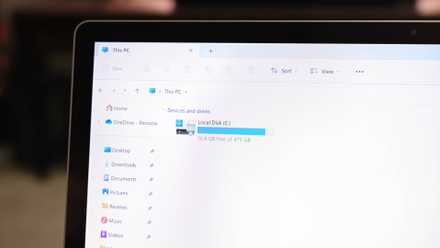
Perhaps more importantly, your apps and OS write those files to your SSD for a good reason: It is really fast. Moving temp and cache files off your SSD just to prolong its life largely defeats the purpose of having an SSD in the first place.
Manually overprovisioning too much
Your SSD usually handles things by itself

SSDs run better when they have free space, which has led enthusiasts to recommend manually leaving a large chunk of the drive unallocated to “guarantee” overprovisioning. The idea is that forcing the drive to maintain extra headroom is necessary for a speedy drive.
However, SSDs do a pretty good job of that themselves. They reserve space for wear leveling and garbage collection automatically, which is plenty for most everyday workloads.
When you reserve extra space without a very specific use case in mind, you’re just preemptively giving up usable storage space. You might not see any benefit at all.
I’d generally recommend leaving it alone unless you run into a performance problem or your drive is nearly full. Only then does it make sense to trade off space for performance.
Sometimes the defaults are just fine
Most SSD tweaks you’ll see recommended aren’t pure nonsense, they’re just largely outdated. Modern hardware is smarter and more robust than the earliest SSDs, and they don’t need the same kind of care that older drives did.
However, there are some things you really should avoid. The big one is defragging, since it can write a substantial percentage of a drive’s total storage while it runs. Windows will try to stop you from doing this, but it is possible to override it.
You also don’t want to leave an SSD sitting unpowered for a prolonged period if you care about the data. They’re more prone to data loss than unpowered HDDs.